DROID Integration with Cubence Tutorial
Step 1: Download DROID
Download DROID and view the installation tutorial: https://docs.factory.ai/cli/getting-started/quickstart#step-1%3A-install-and-start-droid
Step 2: Register Account
Register an account, run DROID locally, and log in with your registered account (i.e., log in to the downloaded DROID with your own account)
Step 3: Configure Custom Model
Add the following configuration to the ~/.factory/config.json file:
{
  "custom_models": [
    {
      "model_display_name": "Sonnet 4.5 [Cubence]",
      "model": "claude-sonnet-4-5-20250929",
      "base_url": "https://api.cubence.com/droid",
      "api_key": "echo your api key",
      "provider": "anthropic"
    }
  ]
}
Note: Please replace your api key with the API Key created on the Cubence platform
Step 4: Restart DROID
After configuration, restart DROID
Step 5: Select Model
-
Enter the
/modelcommand -
Select
Sonnet 4.5 [Cubence]from the model list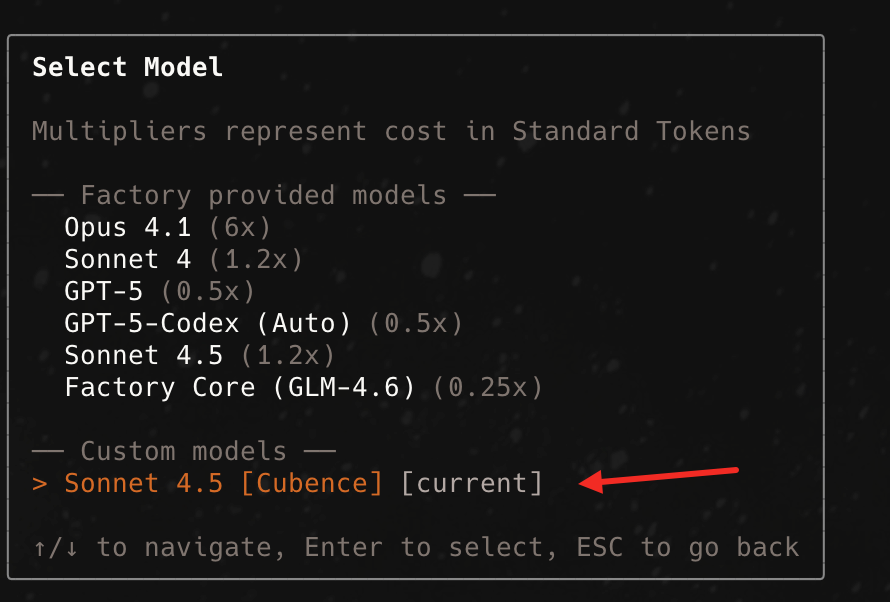
-
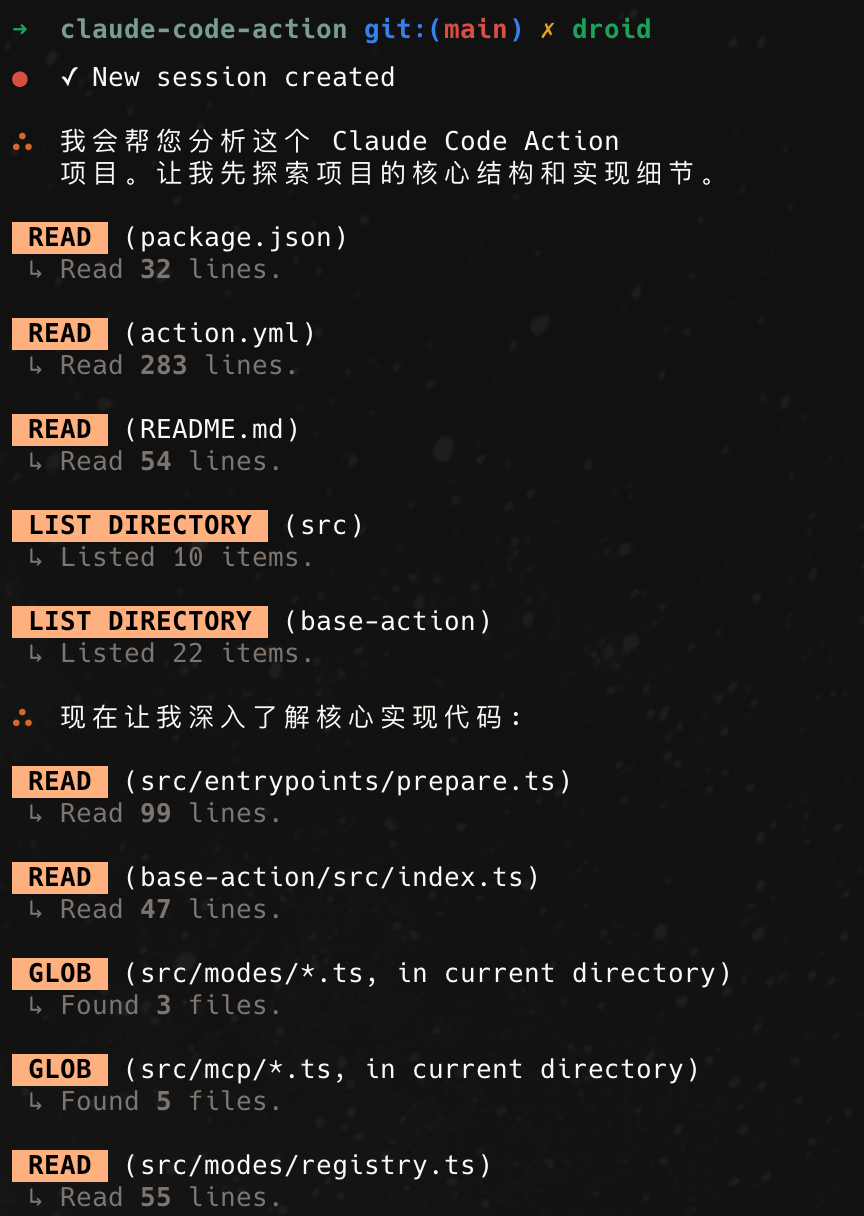
After configuration, you can start using it!
Last updated on